
Toolbar popup
Clicking the TabOasis icon in Chrome’s toolbar opens a fixed 600 × 600 window on top of whatever you are reading. It is the same data as the board, in a shape that fits next to a page you do not want to leave.
It has three tabs across the top: Browse, Quick Add, Settings.
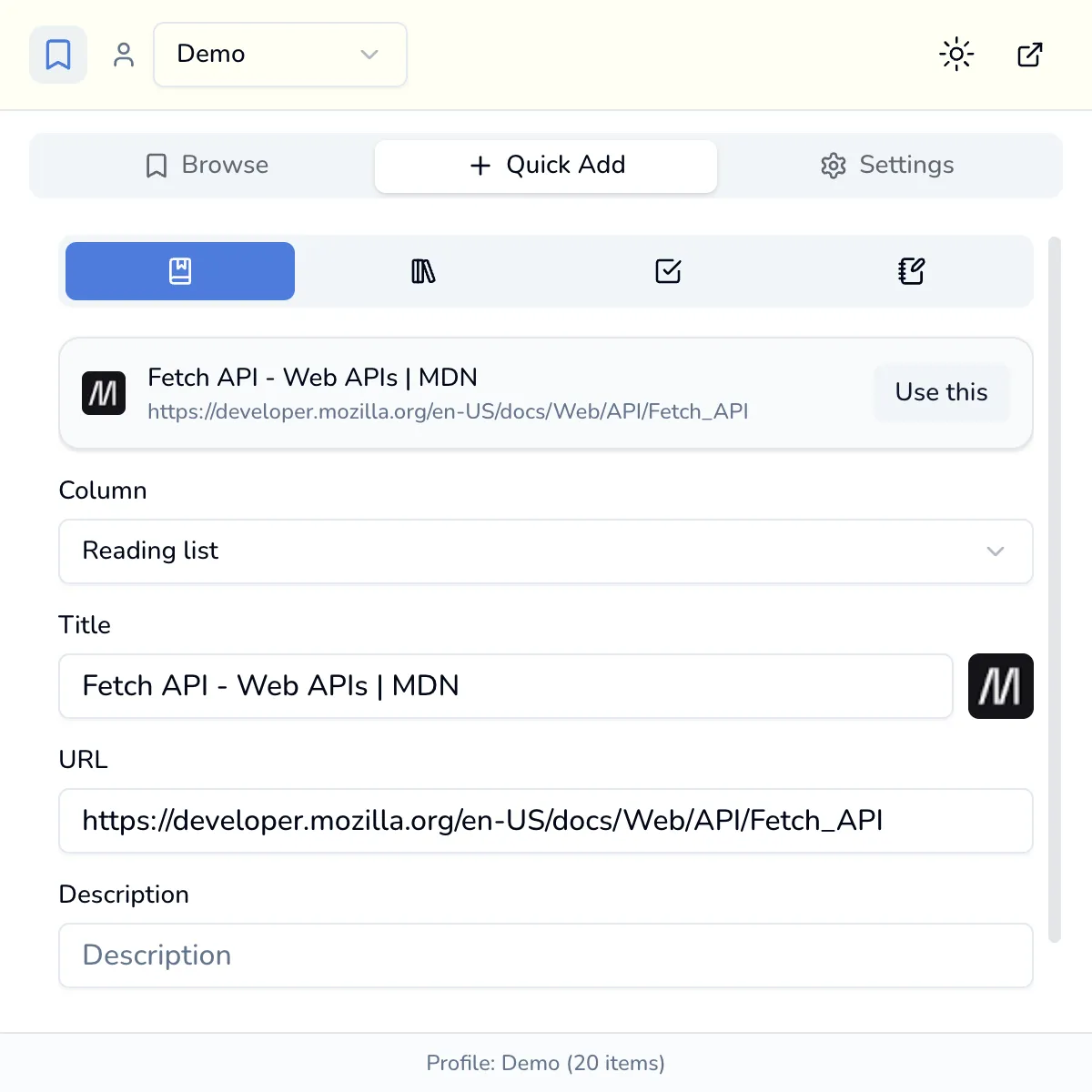
The header carries the profile picker, the light/dark toggle and Open full page, which opens a new tab on the board. The footer reads Profile: name (n items).
Browse
Section titled “Browse”A filtered list of everything in the active profile. Four controls, all combinable:
| Control | Options |
|---|---|
| Column | All columns, or one column |
| Type | All, Bookmarks, Groups, Tasks, Notes |
| Search | matches the title and the body |
| Tag chips | tap several; an item matching any of them stays |
Two things differ from Spotlight: the search box here does not match URLs or domains, and it does not rank results. Archived items never appear.
Quick Add
Section titled “Quick Add”A row of four buttons chooses what you are adding. They are icons without text, and left to right they are Bookmark, Group, Task, Note.
If the page you are on is an ordinary web page, it is offered at the top of the Bookmark form with a Use this button, which fills in the title, the URL and the favicon in one click. The Group form has Use all tabs instead, which pulls in every tab in the current window.
Then choose a Column and press Add Bookmark (or Add Task, and so on).
- Titles are capped at 40 characters, and you will be told if you go over.
- A bookmark whose URL you already have raises This URL already exists: “…” (you can still add it). It is only a warning.
- Everything lands at the root of the chosen column, never inside a folder.
Settings
Section titled “Settings”The same settings as the board’s gear, laid out as a narrow drill-down list instead of a rail. It opens on Preferences. Every section is here, including Cloud Sync, the AI key and the Archive. See Settings for what each one holds.
Your changes save themselves
Section titled “Your changes save themselves”Anything you change in the popup is saved to the active profile, including the last thing you typed before you clicked away.