
Columns
A column is a list. Everything on the board lives in one, and a card belongs to exactly one column at a time.
Making one
Section titled “Making one”Add New Column in the header opens a dialog: give it a title, press Add Column. You can always rename it later.
Drag a column by the grip in its title row to move it left or right.
The row of buttons under the title
Section titled “The row of buttons under the title”Four small buttons, each with a tooltip on hover. Left to right:
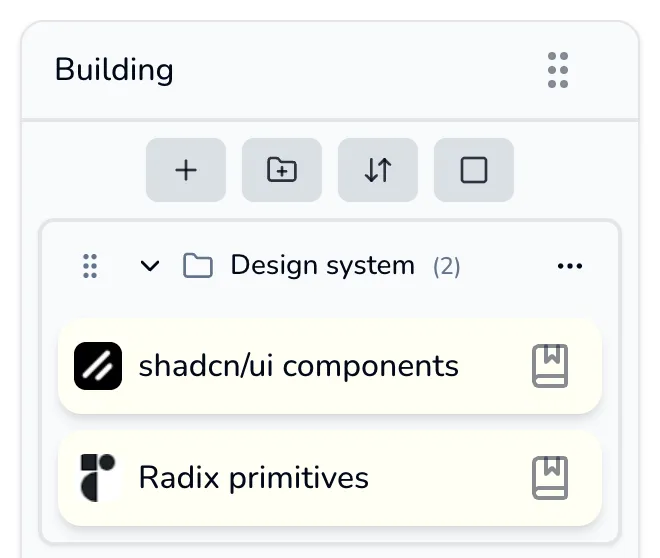
| Button | Name | What it does |
|---|---|---|
| + | Add new item | Bookmark, Group Bookmarks, Note or Task |
| Folder with a + | New Folder | Creates a folder |
| Two arrows | Sort items | Title A-Z, Title Z-A, Newest, Oldest, Most Clicked, and Clear |
| Empty square | Enter selection mode | Starts bulk actions |
A sort choice sticks: the column remembers it and re-applies it the next time you open the board. Clear drops back to oldest-first, which is the order things were created in. It does not restore an arrangement you made by dragging. Pinned cards ignore sorting entirely and stay at the top, and folders always sit above loose cards.
Right-clicking a column
Section titled “Right-clicking a column”Right-click the title row (not a card) for four actions:
- New Folder: opens the same Create Folder dialog as the toolbar button. See folders.
- Edit: rename it. (The dialog it opens is titled Edit Column.)
- Archive Column: moves the column and every card in it to the archive, together. It asks first, and tells you how many items are going with it.
- Delete: the column and its cards, gone for good.
This menu is on the column itself, so it works whether or not the action bar is showing.
The navigation tree
Section titled “The navigation tree”The header’s Navigation tree button opens an outline of your columns and their folders down the left side. Clicking an entry scrolls the board to it, which helps once you have more columns than fit on screen. Hide the button entirely under Preferences → Show navigation tree button.