
Spotlight search
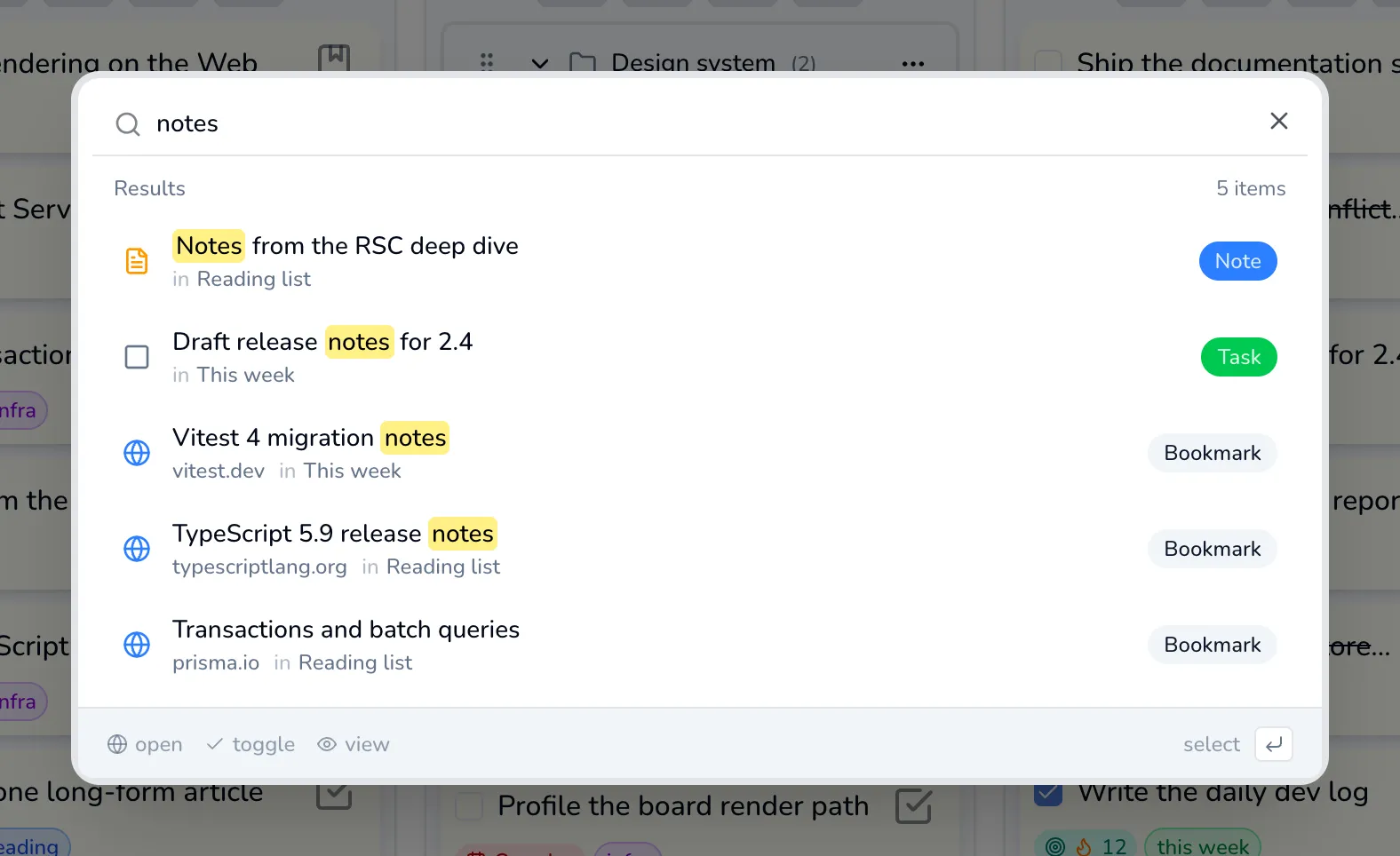
Spotlight is the search box in the header and the overlay behind it. It looks across every column at once: bookmarks, tasks, notes and tab groups.
Opening it
Section titled “Opening it”| Where you are | What opens it |
|---|---|
| The TabOasis board (a new tab) | Ctrl/⌘ + Shift + Space, Ctrl/⌘ + K, /, or clicking Search bookmarks… |
| Any other website | Ctrl/⌘ + Shift + Space (see below) |
Esc closes it, and so do both of the two-key combinations that open it: press Ctrl/⌘ + Shift + Space or Ctrl/⌘ + K again to put it away. / types a slash into the box instead, since by then you are already in it.
On other websites, only Ctrl/⌘ + Shift + Space works.
What it matches
Section titled “What it matches”Type and results appear as you go. It matches the title, the URL and its domain,
tag names, the note or task body, the column name and the item type. For example,
reading finds things in a column called Reading list, and prisma.io finds a
bookmark by its domain.
With the box empty you get your most recently updated items instead. Either way the list stops at 100 and tells you how many more there are.
Archived items are never in the results.
Acting on a result
Section titled “Acting on a result”The footer names the three actions, and the highlighted row responds to Enter:
- open: a bookmark opens its link; a tab group opens all of its links.
- toggle: a task is ticked off or un-ticked without leaving search.
- view: a note opens in a preview drawer.
Commands
Section titled “Commands”Type > as the first character and Spotlight stops searching your items and
lists commands instead: switching view, entering and leaving Focus mode, starting
or pausing the Pomodoro, playing an ambient sound, changing light/dark, and
opening the keyboard-shortcuts help.
Command mode works on the TabOasis board only. In the overlay on an ordinary
website, > is ordinary search text.
Spotlight on other websites
Section titled “Spotlight on other websites”This is the one that needs setting up, and it is off by default.
- It is a Pro feature, so you need a license.
- Turn on the gear → Preferences → Spotlight search on web pages.
- Give the extension access to the sites you use: right-click the TabOasis toolbar icon, open its site-access settings, and allow it on all sites.
Then Ctrl/⌘ + Shift + Space opens the same overlay on top of whatever page you are reading. Click the dimmed backdrop or press Esc to dismiss it.