
Folders
A folder is a collapsible group of cards inside one column. Use them when a column has grown past the point where you can see all of it.
Creating one
Section titled “Creating one”Two controls, both opening the same dialog:
- The folder-with-a-plus button, second in the row of small buttons under a column’s title. It has no written label; hover it and the tooltip reads New Folder.
- New Folder, the first row of the menu you get by right-clicking a column’s title row.
The right-click route is on the column itself, so it is there whether or not the action bar is showing.
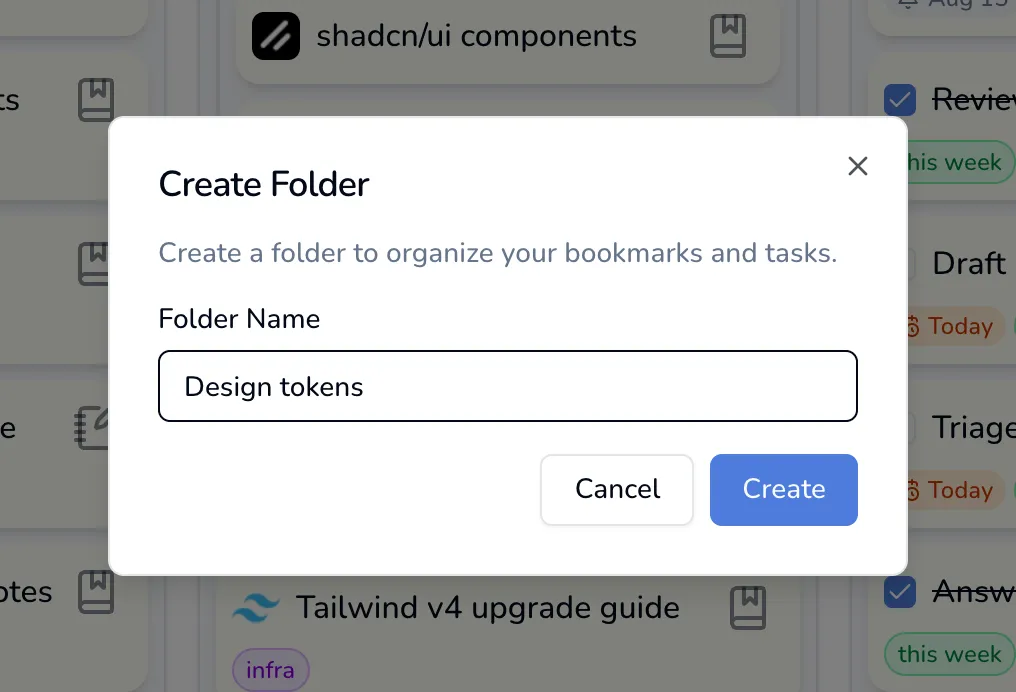
Name it and press Create. It appears after any folders the column already has, above the column’s loose cards.
Filling and using one
Section titled “Filling and using one”- Put cards in by dragging them onto the folder.
- Collapse or expand by clicking the folder’s name. The number beside it is how many cards are inside.
- Reorder folders with the grip on their left. Folders always sit above the column’s loose cards, whatever you do.
- Rename or delete from the … button on the right of the folder row.
Deleting a folder does not delete what is in it. The cards move back out to the column, and the dialog tells you how many before you confirm.
Two things folders do not do
Section titled “Two things folders do not do”Folders do not nest. A folder holds cards, not other folders, and it belongs to one column. Dragging a card out to another column takes it out of the folder, unless you drop it straight into a folder over there.
Folders ignore the tag filter. With a tag filter active, the loose cards in a column are filtered, but folders are not, so an open folder keeps showing cards that do not carry the tag you filtered on. Collapse the folder if that is distracting.