Tags
Tags cut across columns. A card lives in one column but can carry any number of tags, so they are the right tool for “everything about the release”, wherever it happens to sit.
Making a tag
Section titled “Making a tag”Tags are made in one place: the gear → Tags → New Tag. Give it a name and one of eight colors, and it is available on every card in the profile.
Putting tags on cards
Section titled “Putting tags on cards”- One card: right-click it → Tags, then tick tags on and off. The submenu only appears once at least one tag exists.
- Many at once: in selection mode, the floating bar’s Tag button adds one tag to everything selected.
Tags show as colored chips on the card, and Spotlight matches them: searching
infra finds everything tagged infra as well as everything with “infra” in the
title.
Filtering
Section titled “Filtering”The Tags pill sits at the bottom right of the board. Click it for Filter by tags, then click tags to switch them on.
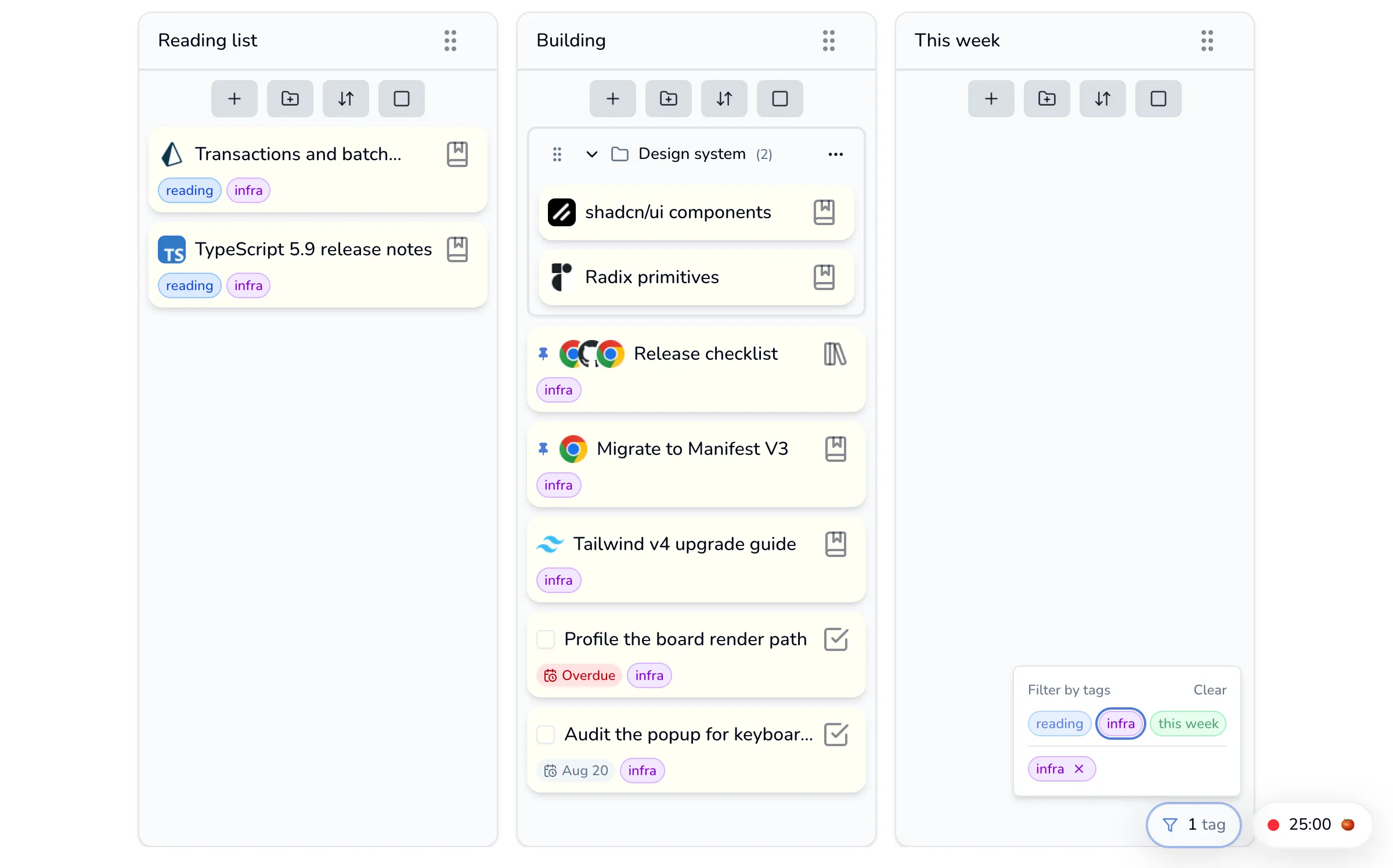
- Picking more than one tag is an or, not an and: a card matching any of the chosen tags stays.
- Clear removes the whole filter; the ✕ on a chip removes just that one.
- The filter applies to Kanban and Calendar views. It is not saved; reopening the board starts unfiltered.
If you never use tags, Preferences → Show tag filter takes the pill off the board. The pill also stays hidden until you have made your first tag.
Editing and deleting
Section titled “Editing and deleting”Back in the gear → Tags, each row has a pencil and a bin. Deleting a tag takes it off every card that carries it, and the confirmation tells you how many that is.